Executive Summary
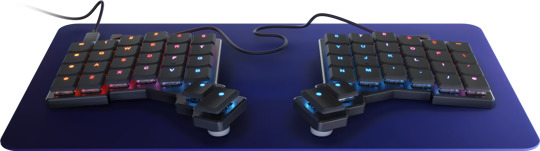
The ZSA Voyager represents a paradigm shift in keyboard design philosophy, prioritizing ergonomic optimization and customization over conventional typing familiarity. After two years of intensive daily use as a professional software developer, I can confidently assess both its transformative benefits and significant adoption challenges. This review provides a comprehensive analysis of the complete ownership experience—from initial purchase through long-term reliability—to help prospective buyers make an informed decision about this substantial investment.
Introduction to Ergonomic Split Keyboards
The Case for Ergonomic Design
Traditional keyboard layouts, inherited from mechanical typewriters of the 1870s, were designed around mechanical constraints rather than human physiology. The staggered key arrangement forces typists to angle their wrists (ulnar deviation) and position their arms unnaturally close together, contributing to repetitive strain injuries (RSI) that affect millions of knowledge workers annually.
Split ergonomic keyboards address these fundamental design flaws by:
- Eliminating ulnar deviation: Each half positions keys perpendicular to natural finger movement
- Enabling shoulder-width arm placement: Reduces chest and shoulder tension from prolonged typing
- Providing tenting options: Allows pronation adjustment to minimize forearm rotation
- Optimizing key travel distance: Columnar layouts reduce unnecessary lateral finger movement
Ortholinear vs. Traditional Staggered Layouts
The Voyager employs an ortholinear (columnar) key arrangement where keys align vertically in straight columns rather than the traditional staggered rows. This design philosophy recognizes that fingers naturally flex and extend in straight lines, not at the angles required by conventional keyboards.
| Aspect | Traditional Staggered | Ortholinear Columnar |
|---|---|---|
| Finger Travel | Diagonal movements required | Straight vertical movement |
| Learning Curve | Familiar from childhood | Requires complete retraining |
| Key Reach | Variable distances per row | Consistent within columns |
| Historical Origin | Typewriter mechanical constraints | Modern ergonomic research |
Learning Curve Analysis
Quantified Transition Experience
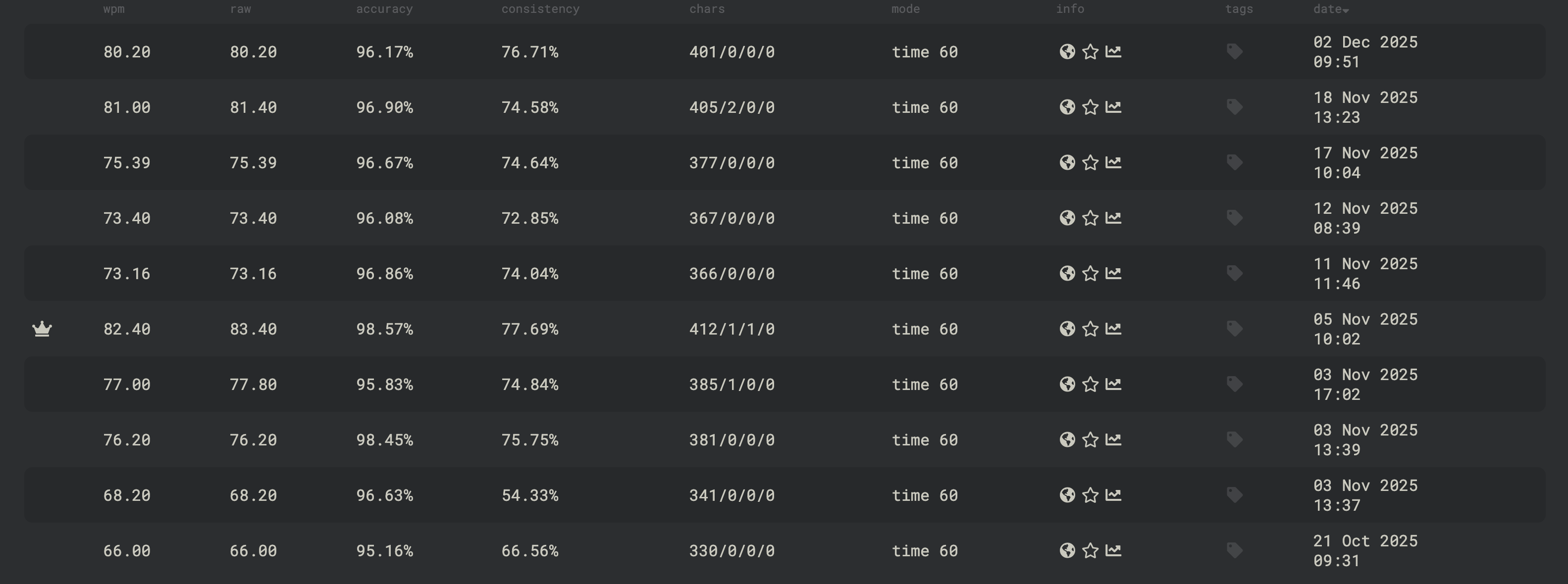
Transitioning from a traditional keyboard to the Voyager's ortholinear split layout requires significant neuromuscular retraining. The following data represents my documented progression:
| Timeline | Words Per Minute | Accuracy | Notes |
|---|---|---|---|
| Baseline (Traditional) | 80 WPM | 98% | Pre-Voyager performance |
| Day 1 | 13 WPM | 72% | Initial disorientation |
| Week 1 | 18 WPM | 78% | Developing muscle memory |
| Week 2 | 24 WPM | 82% | Conscious competence phase |
| Week 4 | 32 WPM | 88% | Transitioned to full-time use |
| Week 8 | 48 WPM | 92% | Layer navigation becoming natural |
| Month 3 | 60 WPM | 95% | Comfortable with programming symbols |
| Month 6 | 72 WPM | 97% | Approaching baseline speed |
| Year 1 | 80 WPM | 98% | Full baseline recovery |
| Year 2 | 85 WPM | 99% | Exceeding original performance |
Recommended Training Methodology
Based on my experience, I recommend the following structured approach:
-
Foundation Phase (Weeks 1-2): Complete typing tutorials focusing on home row positioning. Use websites like keybr.com or monkeytype.com for 15-30 minutes daily. Do not attempt to use the keyboard for productive work.
-
Integration Phase (Weeks 3-4): Begin using the Voyager for low-stakes tasks—casual emails, note-taking, chat applications. Keep a traditional keyboard accessible for time-sensitive work.
-
Immersion Phase (Weeks 5-8): Commit to exclusive Voyager use. Accept temporary productivity loss as an investment. This phase is critical for developing unconscious competence.
-
Optimization Phase (Months 2-3): Begin customizing layers for your specific workflow. For software development, focus on optimizing symbol placement for your primary programming languages.
-
Mastery Phase (Months 4+): Refine layer configurations based on usage patterns. Consider advanced features like tap-dance, combos, and leader keys.
Psychological Considerations
The learning curve presents not just a technical challenge but a psychological one. Expect periods of frustration, particularly during the second and third weeks when the difficulty becomes fully apparent but proficiency remains elusive. Maintaining a practice journal and celebrating incremental progress helps sustain motivation through this challenging period.
Build Quality and Industrial Design
Magnetic Tenting System
The Voyager's tenting mechanism represents innovative engineering:
- Magnet Type: Neodymium rare-earth magnets
- Attachment: Three-point keyed peg system prevents incorrect installation
- Strength: Sufficient to resist movement during normal typing, removable by hand
- Angle Options: Multiple tenting feet available for various ergonomic preferences
- Stability: Zero observed degradation in magnetic strength over two years
The magnetic system eliminates the need for adhesives, screws, or mechanical clips, allowing instant reconfiguration. The keyed peg design ensures feet cannot be installed at incorrect orientations, preventing potential instability.
Tripod Mounting Kit
For users requiring more aggressive tenting angles than the magnetic feet provide, ZSA offers a tripod mounting kit as an optional accessory. I purchased two of these kits to achieve a 35-degree tenting angle that better suits my ergonomic preferences.

The tripod mounting kit attaches to the bottom of each keyboard half via the same magnetic connection points used by the standard tenting feet. This allows the Voyager to be mounted on any standard camera tripod with a 1/4"-20 thread, providing infinite adjustability for tenting angle, height, and positioning.
For the tripods themselves, I opted for two Manfrotto MP3-BK Large Pocket Supports. These compact, foldable tripods feature an all-metal construction with independently adjustable legs and no-slip rubber feet, making them ideal for desk use.

The combination of ZSA's tripod mounting kit and the Manfrotto pocket supports transforms the Voyager into a fully adjustable ergonomic workstation. The 35-degree tenting angle I've achieved has further reduced forearm pronation compared to the standard magnetic feet, providing noticeable improvement in typing comfort during extended sessions. I have thought about mounting these to my chair arms, maybe that will be a future project.
Firmware and Customization Ecosystem
Oryx Configuration Platform
ZSA provides the Oryx web-based configurator for keyboard programming:
Core Features
- Visual Layer Editor: Drag-and-drop key assignment interface
- Unlimited Layers: No practical limit on layer count
- Per-Key RGB Control: Individual LED color and animation assignment
- Macro Programming: Complex key sequences with timing control
- Tap-Dance Configuration: Different actions for tap vs. hold
- Combo Keys: Simultaneous key press detection
- One-Shot Modifiers: Modifier keys that affect only the next keypress
- Layout Sharing: Export/import configurations, access community layouts
Firmware Capabilities
The Voyager runs custom ZSA firmware built on the QMK open-source foundation:
-
Key Features:
- Auto-shift (automatic capitalization on long press)
- Mouse keys (cursor control without mouse)
- Dynamic macro recording
- NKRO (N-key rollover) for simultaneous key detection
- Per-layer RGB profiles
- Adjustable debounce timing
-
Update Process: Web-based flashing through Oryx configurator
-
Backup: Configurations stored in cloud account and exportable as JSON
Keymapp Desktop Application
For real-time configuration and debugging, ZSA provides the Keymapp desktop application:
- Live Layer Display: Shows current active layer and recent keypresses
- Training Mode: Visual feedback during learning process
- Configuration Sync: Direct connection between Oryx and keyboard
- Firmware Management: Version control and update installation
Personal Layer Configuration
Design Philosophy
My layer configuration evolved through iterative refinement over two years, guided by several principles:
- Home Row Modifiers: Dual-function keys that type characters on tap and act as modifiers on hold
- Symmetrical Shift Placement: Left shift for right-hand letters, right shift for left-hand letters
- Minimal Layer Transitions: Most common actions accessible within one layer switch
- Visual Feedback: RGB color coding for instant layer identification
Layer 0: Primary Typing Layer

The base layer implements a QWERTY layout with significant home row modifications:
Home Row Dual-Function Keys:
| Key Position | Tap Action | Hold Action |
|---|---|---|
| A | Letter 'a' | Command (⌘) |
| S | Letter 's' | Option (⌥) |
| D | Letter 'd' | Control (⌃) |
| F | Letter 'f' | Shift |
| J | Letter 'j' | Shift |
| K | Letter 'k' | Control (⌃) |
| L | Letter 'l' | Option (⌥) |
| ; | Semicolon | Command (⌘) |
This configuration eliminates the need to stretch fingers to corner modifier positions, significantly reducing pinky strain. The adjustment period for this modification exceeded the ortholinear transition itself, requiring approximately six weeks of dedicated practice.
Shift Key Philosophy: Using opposite-hand shift for capitalization (left shift for right-hand letters and vice versa) promotes balanced hand usage and reduces single-hand strain during extended typing sessions.
Layer 1: Programming Symbols

This layer positions programming symbols for optimal accessibility:
- Brackets and Braces:
[],{},()positioned under strong fingers - Operators:
=,+,-,*,/arranged logically - Special Characters:
@,#,$,%,^,&accessible without awkward reaches
Current Assessment: This layer remains under evaluation. I am exploring integration of frequently-used symbols into the primary layer via tap-dance functionality (double-tap for symbols) to reduce layer switching during intensive coding sessions.
Layer 2: Navigation and Mouse Control

Navigation layer features include:
- Arrow Key Cluster: HJKL vim-style navigation
- Mouse Control: Cursor movement, left/right click, scroll
- Browser Navigation: Tab switching, forward/back, refresh
- Text Selection: Word and line selection shortcuts
- Window Management: Integration with desktop environment shortcuts
The mouse control functionality, while not replacing a dedicated pointing device, provides convenient cursor access without removing hands from the keyboard—particularly useful for brief interactions during focused coding sessions.
Layer 3: Function Keys and Media Controls

This layer consolidates system controls:
- Function Row: F1-F12 positioned across top rows
- Numeric Keypad: 10-key layout on right half for data entry
- Media Controls: Play/pause, volume adjustment, track navigation
- Display Controls: Brightness adjustment for external monitors
- Keyboard Settings: RGB color/brightness control, backlight toggle
Layer 4: Application Launcher and System Controls

The application layer integrates with my development environment:
KVM Integration: My display features an integrated KVM switch. Dedicated keys trigger the switch between macOS laptop and Windows workstation, automatically routing all connected peripherals (keyboard, mouse, headset, webcam) to the selected system.
Window Management (AeroSpace): Integration with AeroSpace, a tiling window manager for macOS:
Option+H/J/K/L: Navigate between windows in tiling layoutOption+Shift+H/J/K/L: Move windows between positions- Workspace switching shortcuts for multi-desktop workflows
Application Launchers: Single-key shortcuts for frequently-accessed applications (terminal, browser, IDE, communication tools).
Blank Keycaps: The Touch-Typing Commitment
I intentionally configured my Voyager with blank keycaps—each key displays only a single illuminated dot from the RGB backlight. This decision serves multiple purposes:
- Enforced Touch Typing: Eliminates the temptation to look at keys during learning
- Layer Flexibility: No physical legends to conflict with custom layer assignments
- Visual Privacy: Others cannot quickly identify my key layout
- Aesthetic Preference: Minimalist appearance aligns with personal style
The blank keycaps initially extended the learning curve but ultimately accelerated the development of proper touch-typing technique. Looking at the keyboard becomes pointless when no visual information is available, forcing reliance on muscle memory.
Purchase and Fulfillment Experience
Order Process
- Configuration Time: Approximately 30 minutes to select options (switches, colors, accessories)
- Order Confirmation: Immediate email with estimated ship date
- Lead Time: Three weeks from order to delivery (built-to-order manufacturing)
- Manufacturing Location: Taipei, Taiwan
- Shipping Method: DHL Express with tracking
- Customs Handling: Pre-paid duties and taxes (no additional charges at delivery)
Packaging and Unboxing
The Voyager arrives in premium packaging reflecting its price point:
- Outer Packaging: Sturdy cardboard shipping box with foam protection
- Product Box: Magnetic-closure presentation box
- Included Items:
- Left and right keyboard halves
- TRRS interconnect cable
- USB-C to USB-A cable
- Magnetic tenting feet (set)
- Keycap puller tool
- Switch puller tool
- Quick start guide
- Carrying pouch
The inclusion of switch and keycap pullers acknowledges the hot-swappable nature of the keyboard and encourages customization.
Customer Support and Warranty Experience
Warranty Coverage
- Duration: Two-year limited warranty
- Coverage: Manufacturing defects in materials and workmanship
- Exclusions: Physical damage, liquid damage, unauthorized modifications
Personal RMA Experience
After approximately 14 months of daily use, I encountered an intermittent hardware failure:
Symptoms: The right keyboard half would randomly disconnect during typing sessions, requiring cable reconnection to restore functionality. The disconnections occurred unpredictably—sometimes multiple times daily, sometimes not for several days.
Support Process:
- Initial Contact: Submitted support ticket through ZSA website with detailed symptom description
- Troubleshooting Protocol: Support team provided systematic diagnostic steps:
- TRRS cable replacement (ruled out)
- USB cable replacement (ruled out)
- Firmware reset and reflash (ruled out)
- Port inspection for debris (ruled out)
- RMA Authorization: After confirming hardware fault, RMA approved within 24 hours
- Return Shipping: Provided US-based return address (not Taiwan), significantly reducing shipping costs and time
- Replacement Processing: Replacement unit was built and shipped quickly did not take 3 weeks
- Transition Period: Allowed to retain defective unit for two weeks while verifying replacement functionality
Resolution: The replacement unit has functioned flawlessly for the subsequent 10 months. ZSA's diagnosis indicated a defective TRRS port connection on the original right half.
Notable Observations:
- Replacement arrived without keycaps (expected to transfer from original unit)
- Support communication was professional, patient, and technically competent
- The thorough troubleshooting process, while time-consuming, ensured accurate diagnosis
Support Quality Assessment
ZSA's support experience exceeded expectations for a boutique hardware manufacturer:
- Response Time: Typically within 24 hours
- Technical Competence: Support staff demonstrated deep product knowledge
- Process Efficiency: Clear escalation path from troubleshooting to RMA
- Customer-Centric Policies: Flexible retention period during replacement testing
Long-Term Reliability Assessment
Two-Year Durability Report
After 24 months of daily professional use (estimated 8+ hours per day, 5+ days per week):
| Component | Condition | Notes |
|---|---|---|
| Aluminum Base | Excellent | No scratches, dents, or finish wear |
| Polycarbonate Housing | Excellent | No cracks, discoloration, or warping |
| Key Switches | Good | Original switches still functional (except RMA unit) |
| RGB LEDs | Excellent | Full brightness, no dead LEDs |
| USB-C Port | Excellent | No connection issues, tight fit maintained |
| TRRS Port | Good* | One failure (resolved via RMA) |
| Magnetic Feet | Excellent | Full magnetic strength retained |
| Keycaps | Excellent | No shine on frequently-used keys |
*TRRS port failure on original unit; replacement unit performing well.
Estimated Lifespan
Based on component quality and two-year observation, I estimate the Voyager's functional lifespan at 5-7 years under intensive professional use, with potential switch replacement needed around year 4-5 due to tactile degradation.
Future Modifications
Planned Configuration Changes
I have been evaluating further keyboard optimization for approximately one year:
Proposed Modifications:
- Reduced Key Count: Converting outer column keys and bottom row keys to blank covers, effectively creating a 36-key layout
- Raised Home Row: Shifting primary typing position up one row with covered bottom row
- Symbol Integration: Moving Layer 1 symbols to primary layer via tap-dance (double-tap for symbols)
- Number Row Elimination: Implementing numbers via tap-dance or dedicated number layer
Implementation Hesitation: These modifications would require another significant retraining period. Having achieved comfortable proficiency with the current configuration, I am weighing the potential efficiency gains against the certain short-term productivity loss. The modifications have remained in planning phase pending a suitable low-stakes period for implementation.
Value Proposition Analysis
Cost-Per-Use Calculation
| Metric | Value |
|---|---|
| Purchase Price | $365 |
| Estimated Usage | 2,000 hours/year × 5 years = 10,000 hours |
| Cost Per Hour | $0.037 |
| Daily Cost (8 hours) | $0.29 |
For professionals experiencing RSI or ergonomic discomfort, the Voyager's value proposition strengthens considerably when factoring in potential medical costs, lost productivity, and quality-of-life impacts from repetitive strain injuries.
Recommended Buyer Profile
Ideal Candidates:
- Software developers and writers with 6+ hours daily keyboard use
- Professionals experiencing wrist, shoulder, or RSI discomfort
- Touch typists willing to invest 2-3 months in retraining
- Users requiring extensive customization for specialized workflows
- Those prioritizing long-term ergonomic health over short-term convenience
Not Recommended For:
- Casual computer users with minimal daily typing
- Those unwilling to commit to the learning curve investment
- Users requiring immediate productivity without adaptation period
- Budget-conscious buyers seeking basic ergonomic improvements
- Gamers requiring traditional key layouts for muscle memory
Conclusion
The ZSA Voyager represents a fundamental reimagining of keyboard design, prioritizing long-term ergonomic health and workflow optimization over immediate accessibility. After two years of daily professional use, I can attest to its transformative impact on typing comfort and efficiency—the shoulder and wrist strain I experienced with conventional keyboards has been eliminated entirely.
The significant learning curve and premium price point position the Voyager as an investment rather than a purchase. Prospective buyers must honestly assess their commitment to retraining and their tolerance for temporary productivity loss. For those who make this commitment, the Voyager delivers exceptional returns in typing comfort, customization capability, and build quality.
The RMA experience reinforced my confidence in ZSA as a company—their support infrastructure, while tested by my hardware failure, responded with professionalism and efficiency. The replacement unit's continued reliable performance validates the quality of their manufacturing when functioning as designed.
Final Rating: 4/5 Stars
Exceptional ergonomic engineering and build quality with comprehensive customization options, tempered by a substantial learning curve and premium pricing. Highly recommended for professionals willing to invest in long-term typing health and efficiency.
Review based on 24 months of daily use as a professional software developer. Configuration: Black aluminum finish, blank black keycaps. Total estimated typing hours: 4,000+